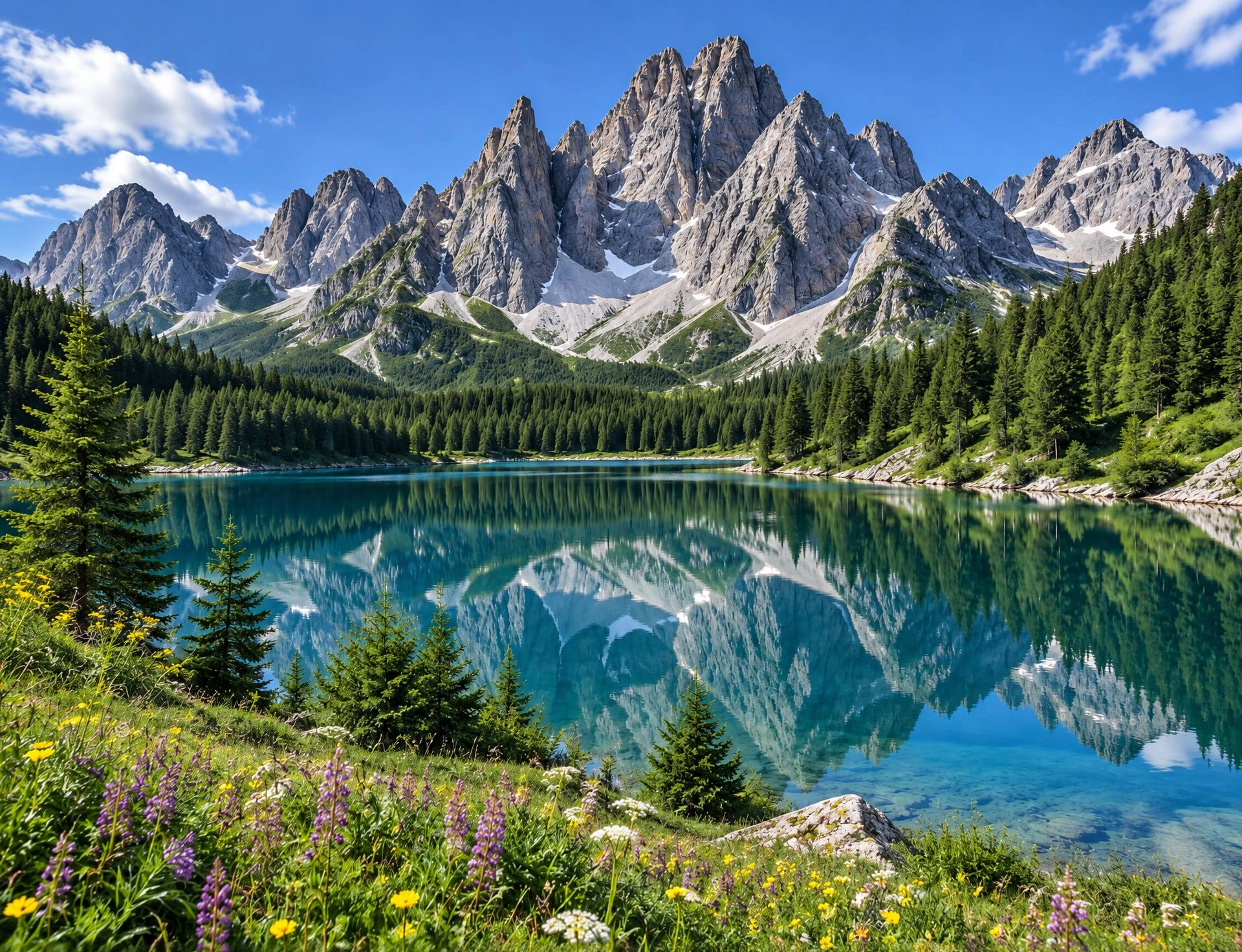
A photo with a oval outline
A oval crop turns a photograph into a wide curved frame with no sharp corners. It keeps the pixels inside that outline and makes the surrounding area transparent. This is useful for couple portraits, horizontal product details, and soft scrapbook frames. Start with a photo that has a clear focal point and some spare background, rather than one already cropped tightly to its subject. The outline is a mask over your picture: it does not bend the scene, invent missing detail, or change the original file on your device.
Framing a photo inside a oval
Arrange two faces or a long object along the middle horizontal band. Keep the outer ends comfortably inside the curved boundary.
Look at the subject before judging the outline. If a face, pet, or product becomes hard to recognize, move the photo toward the widest usable part of the oval and reduce the zoom. A clean silhouette is only helpful when the image inside it still communicates what you intended. Check small details such as ears, fingertips, and the edge of an object after each adjustment.
An oval loses more of the four corners than a rectangle. A wide scene needs a strong central subject to remain readable.
How to crop an image into a oval
The oval preset is selected when this page opens. You can replace the demo with your own image without choosing the shape again. Use a photo file your browser can display, such as a JPEG, PNG, or WebP. If an unusual format will not open, save a compatible copy first rather than changing the file extension.
- Click the image drop area and choose a photo from your device, or drag a photo file into that area.
- Drag the photo within the preview to position the subject inside the oval. Inspect the boundary rather than only the center.
- Use the minus and plus Zoom buttons to change the framing. On wider screens, the slider gives another way to adjust magnification.
- Try the checkerboard, white, or dark preview background to see whether the edges and transparent areas look right.
- Choose Crop & Download to save the PNG. Open the saved image and check it on the background where you plan to use it.
Image size, sharpness, and transparent edges
There is no required pixel size for a oval photo. Choose a detailed original for large placements. A tiny source becomes soft when enlarged; zooming cannot restore missing detail.
The editor uses a rectangular canvas even though the visible photo has a oval outline. Transparent space around that outline is expected, not an extra white border. PNG preserves this transparency. If you later convert the image to JPEG, the transparent area must become a solid background. Keep the PNG when you want the surrounding page or slide color to show through.
Where a oval crop works best
Try this frame for couple portraits, horizontal product details, and soft scrapbook frames. One clear subject usually reads better than a crowded scene. In a collection, separate the crops enough that each silhouette stays distinct.
Compare this preset with a capsule, which has straight middle edges and rounded ends. The difference is not just decorative: each outline keeps different parts of the original scene. Try both using the same photo before committing to a collection. For text-heavy photographs, a plain square or rectangle often preserves more information than a strongly tapered or notched frame.
Common problems and practical fixes
If part of the subject disappears, revisit this framing advice: Arrange two faces or a long object along the middle horizontal band. Keep the outer ends comfortably inside the curved boundary. Move the photo first, then adjust zoom in small increments. If the result still feels cramped, choose a source with more surrounding space. The cropper cannot reveal areas that were outside the original photograph.
A white box in another app may mean it flattens transparency. Test the PNG over a colored background. Inspect soft boundaries at the intended display size, not at extreme magnification.
Frequently asked questions
What does the oval image cropper keep?
It keeps the photo inside a wide curved frame with no sharp corners. Pixels outside that mask become transparent in the downloaded PNG. Your original photo stays unchanged.
Where should I place the subject in a oval?
Arrange two faces or a long object along the middle horizontal band. Keep the outer ends comfortably inside the curved boundary.
What is the main framing problem with this shape?
An oval loses more of the four corners than a rectangle. A wide scene needs a strong central subject to remain readable.
How does this differ from another crop shape?
Compare it with a capsule, which has straight middle edges and rounded ends. Check which outline preserves your subject rather than choosing only by the silhouette.
Does cropping into a oval upload my photo?
No. Your selected photo is read and processed in this browser. The crop does not require a photo upload to a server, an account, or a payment.