A useful YouTube thumbnail makes the subject of a video understandable before anyone presses play. Cropping can strengthen an existing photograph or finished design by removing empty space and concentrating attention. It cannot create a complete thumbnail layout from separate elements. Use this tool to upload a local image, move and resize a locked crop rectangle, set output width and height, and export PNG or JPG.
Separate a practical preset from current official guidance
For a standard video thumbnail, 16:9 is confirmed by YouTube’s official thumbnail help. A 1280 x 720 export has that ratio and can be used as a practical crop workflow, but it should not be described as the current official recommended resolution. The live help page checked for this guide instead recommends 3840 x 2160 for video thumbnails and specifies a minimum video-thumbnail width of 640 pixels.
YouTube’s current help distinguishes video thumbnails, Shorts thumbnails, and podcast playlist artwork. Do not assume that a landscape crop is suitable for every destination simply because it belongs to YouTube. Check the current guidance and your upload interface for the actual content type. This guide concentrates on a landscape video-thumbnail composition, not a universal channel-art or Shorts template.
Choose the strongest visual moment
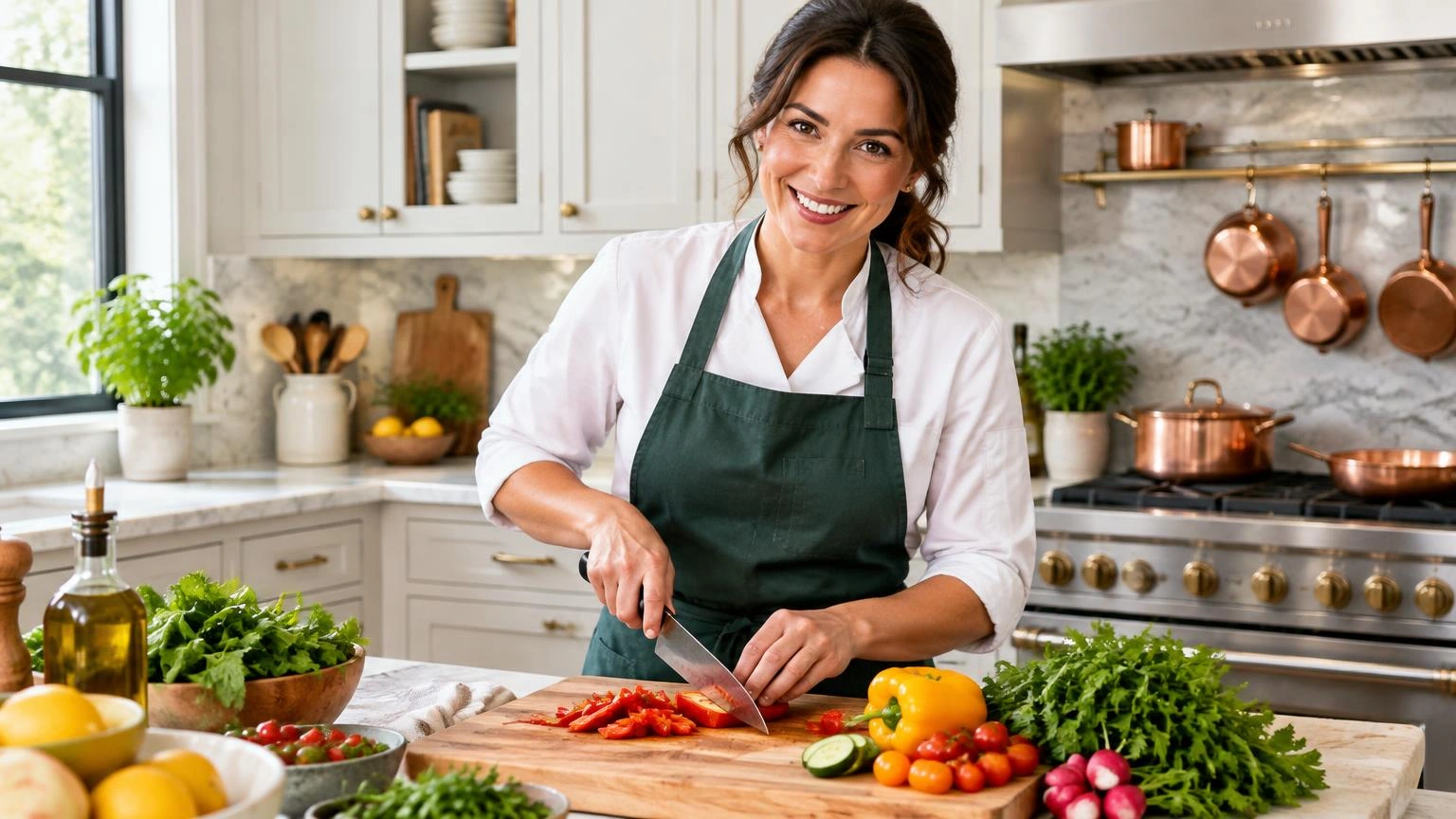
Pick an image that accurately represents the video. A cooking tutorial might emphasize the finished dish and a recognizable ingredient; a repair video might show the damaged part clearly. Avoid a frame in which motion blur or a half-closed expression becomes the main attraction. Tightening the crop can improve emphasis, but it cannot repair focus or reveal details outside the original photograph.
If the source already contains text, inspect the complete phrase after cropping. Preserve a comfortable margin rather than letting letters touch the edge. Favor one main subject over several equally prominent objects. Consider where the viewer should look first and what supporting context they need second. The goal is clarity, not simply making a face or object as large as possible.
Prepare and export the crop
Treat output dimensions and composition as separate decisions. The rectangle controls which content remains; width and height control the exported image dimensions. A larger export cannot create photographic detail absent from the source. Start with the best available original and use a less severe crop if important features become soft.
- Upload a local photograph or a finished thumbnail design.
- Choose a locked 16:9 crop and drag the rectangle over the main subject.
- Resize it to remove distractions while retaining enough context to explain the video.
- Set matching output dimensions, such as the 1280 x 720 workflow, without calling that preset YouTube’s current recommendation.
- Export JPG or PNG and inspect the downloaded image at both a large and a small viewing size.
- Upload through the thumbnail controls in YouTube Studio, review the result, and save the video changes.
Review publishing and tool boundaries
YouTube’s official help explains that custom-thumbnail access depends on account verification and that thumbnails must follow its policies. A correctly proportioned image is not a promise of upload eligibility, acceptance, reach, or clicks. Check current file limits for your upload device in the official instructions. If Studio rejects the file, read the actual error instead of assuming the crop ratio caused it.
This tool does not add text, combine layers, remove backgrounds, retouch faces, or detect subjects automatically. Prepare those design elements elsewhere if needed, then crop the finished image here. The guide overlay is not included in the export. Keep your original design so future revisions do not depend on repeatedly enlarging a compressed thumbnail.
Frequently asked questions
Is 1280 x 720 still the official recommendation?
Not on the live help page checked here. It recommends 3840 x 2160 for video thumbnails. A 1280 x 720 export remains a 16:9 editing workflow, not a statement of the latest recommended resolution.
Does this crop work for Shorts too?
Do not assume so. YouTube documents Shorts separately. Check the current Shorts instructions and upload controls before choosing a crop intended for that format.
Can I add a title in this tool?
No. The supported workflow is cropping and exporting an existing image. Add typography in a separate design editor first, then preserve the complete text when positioning the crop.
Should I choose JPG or PNG?
Both are listed in YouTube’s thumbnail help. Choose based on the image and inspect the exported file. Also check the current upload-size limit rather than judging suitability by format alone.
Will the tool upload my thumbnail?
No. Export the image, then upload it yourself through YouTube Studio. Review the platform preview and save your changes there.