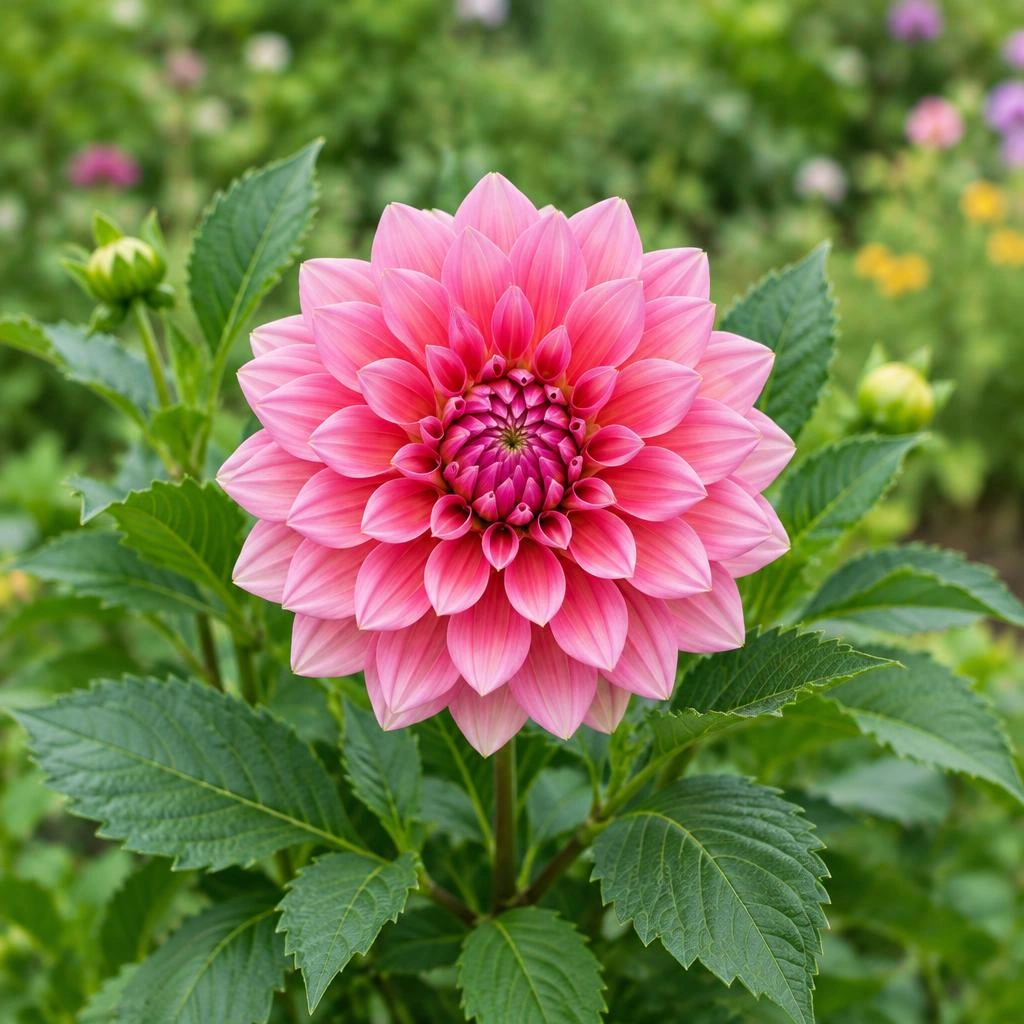
A hexagonal crop gives a portrait, texture, or illustration a geometric outline with six sides. It can add variety to a collection of badges or create a focal image that feels more angular than a circle. This tool produces a flat-top hexagon clipped into a square canvas. The selection controls the image inside that shape, and processing happens locally on your device without uploading your source image.
Understand the flat-top shape
Flat-top means the hexagon has horizontal upper and lower edges, with points extending toward the left and right. It is not a point-top hexagon with a vertex at the top. This orientation affects where you should leave room for hair, lettering, and other details near the boundary.
The square canvas and the six-sided visible area serve different purposes. The canvas determines the file’s width and height; the clip determines which pixels remain visible. Areas outside the hexagon are transparent, so the image can sit over a colored background without showing an opaque rectangular border.
Build your hexagonal crop
Think of the draggable square selection as a positioning frame, not the finished outline. Parts of the square are removed by the hexagonal clip. Use the shape boundary as your guide when deciding what belongs in the final image.
- Open a source image from your device and choose the hexagon shape.
- Keep the bounding selection square, using the matching preset where needed.
- Move the frame so the subject sits inside the six-sided area, then resize it to adjust the amount of surrounding context.
- Choose natural crop resolution or set exact output dimensions with equal width and height.
- Export the shape as PNG and inspect the transparent margins and clipped edges in the saved image.
Distinguish canvas ratio from hexagon geometry
The output canvas uses a 1:1 ratio. For example, a 900 by 900 export describes a square file, not six sides that are each 900 pixels long. Do not calculate subject placement from the output width alone; inspect where the sloping edges cross the image.
This tool fits a flat-top six-sided outline across a square canvas. The upper and lower edges run between the quarter-width and three-quarter-width points, and the side points meet the middle of the left and right edges. This is a stylized hexagon rather than a regular six-equal-sided polygon. Use the live output preview to check the exact silhouette before adding it to a layout.
Compose around slopes and corners
Keep faces, logos, and text away from the diagonal sides. A detail that fits near a square selection’s upper corner may disappear after clipping. Centering is a reliable starting point, but adjust the subject’s visual weight if a dark object or strong highlight pulls attention toward one side.
For textures, check whether recognizable lines meet the sloping edges cleanly. For portraits, allow space above the head without pushing the chin into the bottom boundary. If you want a related group of hexagonal images, match subject scale and background brightness so the unusual outline does not become the only consistent feature.
Export transparency without expecting background removal
Hexagon exports are PNG only. PNG supports the transparent areas outside the shape, whereas JPG cannot store transparency. The background inside the hexagon remains part of the picture unless it was already transparent in your source. Clipping to six sides is not automatic subject extraction.
Natural crop resolution uses the selected source region’s dimensions. Exact output resizes that same framing to your chosen square dimensions. Enlarging a low-resolution crop cannot add true detail, and the square transparent margins still count toward the file size in pixels. Review the result at the size where it will actually appear.
Frequently asked questions
Can I rotate this into a point-top hexagon?
This shape is flat-top. Its top and bottom edges are horizontal; do not assume the crop controls provide a different hexagon orientation.
Why is the exported file square?
The hexagon is clipped within a square canvas. Transparent pixels fill the portions of that canvas outside the six-sided outline.
Can I save a hexagon as JPG?
No. Shape exports use PNG so the area outside the hexagon can remain transparent rather than becoming an opaque rectangle.
Will every part of my square selection remain visible?
No. The clip removes areas outside the hexagon, including parts near the square’s corners. Keep important details inside the shape boundary.
Does the tool upload my image to make the shape?
No. The hexagonal crop is processed locally on your device; opening the source does not send it to a server.