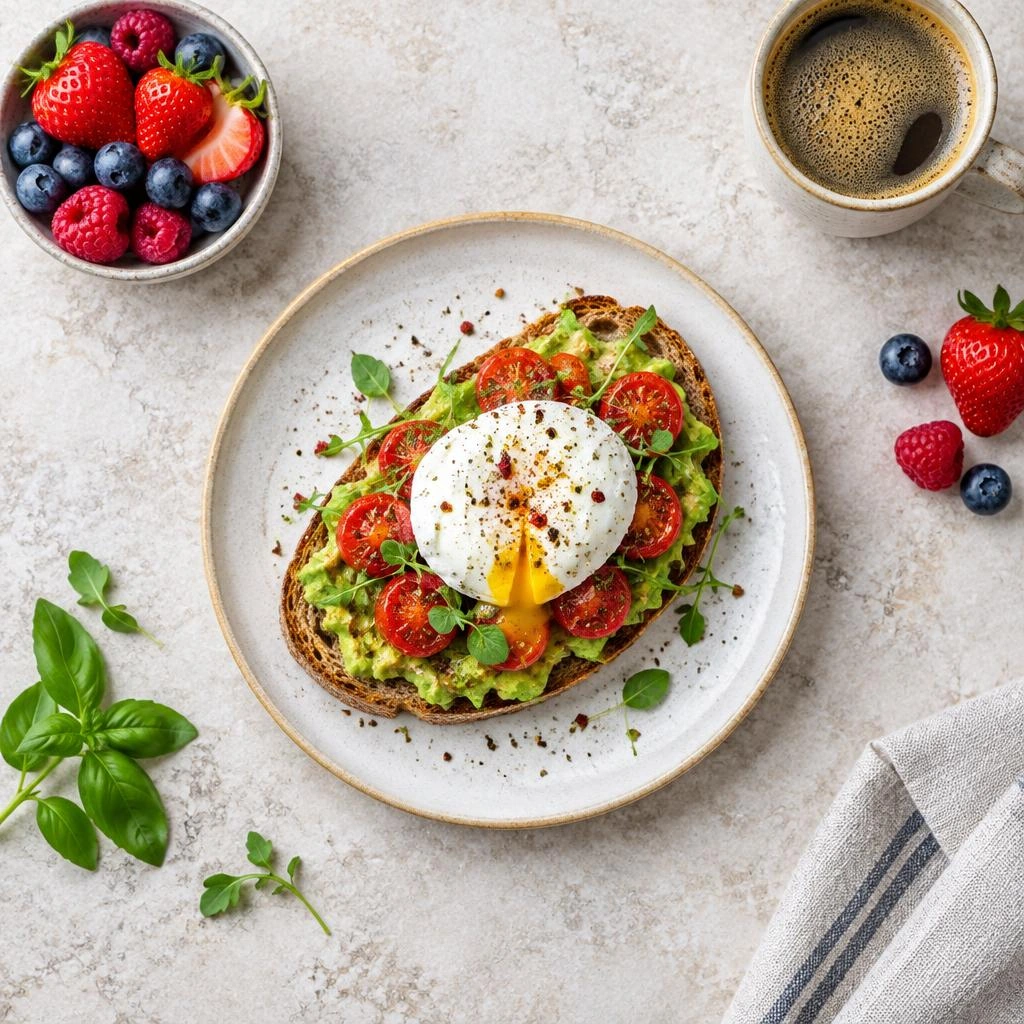
Prepare an Instagram image by deciding what the viewer should notice before choosing the frame. A useful crop removes distractions without cutting away the context that makes a photograph understandable. This tool lets you upload a local image, drag and resize a locked crop rectangle, set output width and height, and export PNG or JPG. It does not retouch photographs, detect faces, publish posts, or predict every Instagram preview.
Choose a ratio for the intended placement
The interface offers 1:1, 4:5, 1.91:1, and 9:16 as selectable cropping workflows. Square gives a balanced frame, portrait leaves more room above and below a subject, landscape suits wider scenes, and a tall vertical crop can help plan a full-height composition. These choices are editing options, not a promise that every Instagram placement will display the whole file.
Consult Instagram’s official photo-resolution help for the destination’s current requirements. Reels are a separate video workflow, with their own official guidance linked below. Exporting a tall still image here does not create a Reel or establish a requirement for a Story, Reel cover, or ordinary feed photo. The ratios here describe the crop you select, not a promise of identical presentation on every Instagram surface.
Crop the photograph deliberately
Start with the original photograph rather than a screenshot or previously compressed download. Find the detail that carries the image: a face, a product, a doorway, or an interaction. Keep enough surrounding space to explain it. With a locked ratio, resizing changes the selected area while preserving the frame proportions. Moving the rectangle changes which part of the original survives.
- Upload a local image and choose the ratio that matches your planned composition.
- Drag the crop rectangle over the main subject, then resize it without changing its locked proportions.
- Inspect the edges for clipped fingers, product labels, signs, or distracting partial objects.
- Set output width and height consistent with the chosen ratio, then select PNG or JPG.
- Export, open the saved image, and check it again in Instagram’s actual upload preview.
Compose for more than one preview
Leave breathing room around a face rather than pressing hair against the top edge. For products, preserve the silhouette and any identifying detail. For landscapes, avoid letting an unimportant foreground occupy most of a narrow frame. If text already exists in the photograph, keep the whole phrase visible and comfortably inside the crop. This tool does not add captions or redesign typography. Try making two different crops from the same original, then compare them at a small display size. If the photograph needs a full-length figure, a tall crop can protect the feet and head. If the story depends on two people interacting, a wider crop may communicate the relationship more clearly.
Keep critical details nearer the center when the image may appear in several contexts, but do not treat an imagined central area as an official safe zone. Instagram can present media differently across surfaces. Preview each intended placement yourself. A carousel also deserves an image-by-image check: a crop that works for a portrait may remove essential information from a wider group photograph.
Check the exported result
JPG is a practical choice for many photographs; PNG can be useful for artwork or graphics. Neither format restores detail missing from the original. Increasing output dimensions can enlarge a soft image without making it genuinely sharper. The selection border is not included in the download. Keep the original so you can make a different crop later instead of repeatedly cropping an already reduced file.
Frequently asked questions
Does choosing 4:5 lock the crop while I resize it?
Yes. Selecting the portrait preset locks the frame to four units of width for five units of height. Resizing changes its coverage without stretching the photo. Custom pixel dimensions can establish a different ratio.
Can I use the 9:16 option for any Instagram upload?
You can prepare a tall still image, but acceptance and display depend on the destination. Reels video guidance does not automatically describe every still-photo or cover workflow.
Will the crop remove distractions inside the selected area?
No. Cropping removes content outside the rectangle. It cannot erase people, replace backgrounds, retouch skin, or repair objects that remain inside the frame.
Why did my exported photograph look softer?
The selected area may contain too little original detail for the output dimensions. Try a less aggressive crop or a sharper source rather than repeatedly enlarging the same small selection.
Can I preserve source resolution instead of choosing pixels?
Leave Exact output size unchecked. The download uses the selected area’s original pixel dimensions. Select exact output only when you want the saved image resampled to the entered width and height.