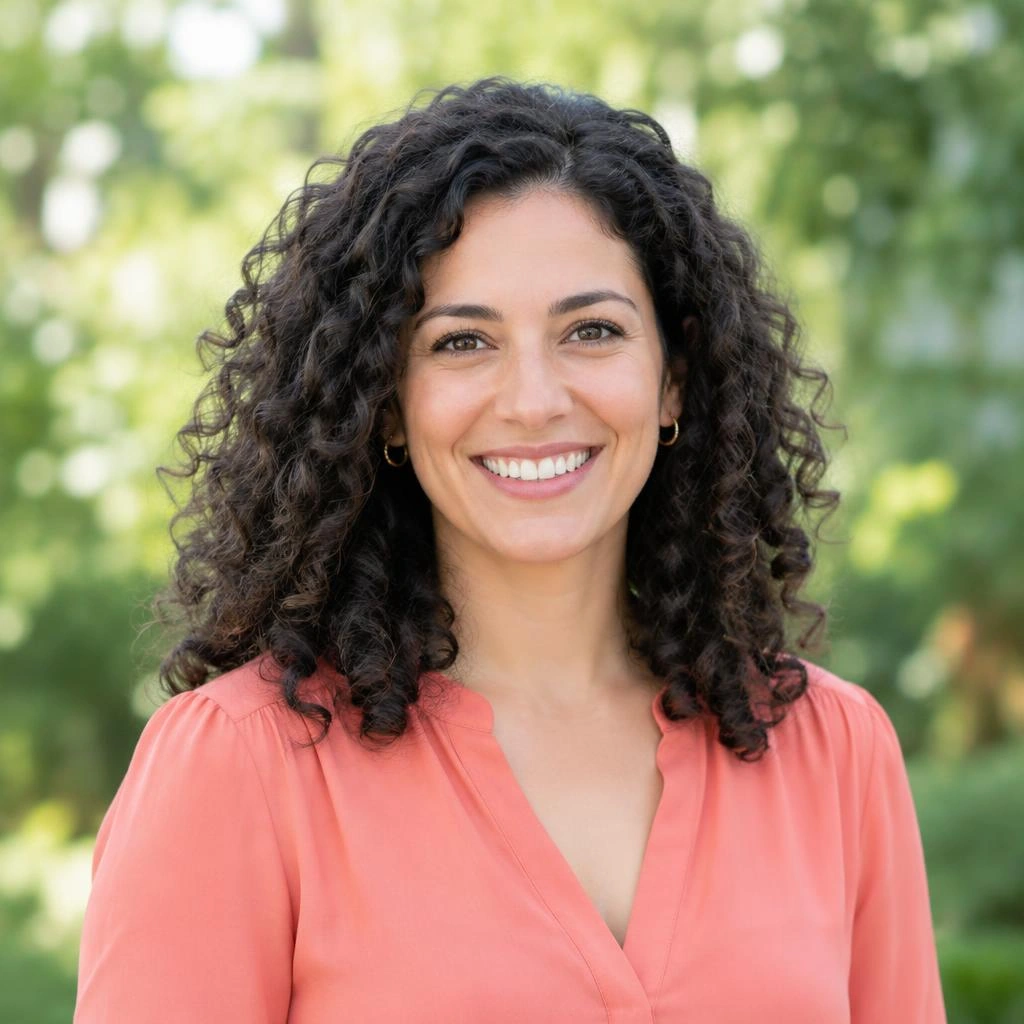
A circular crop gives a portrait, product detail, or small illustration a clear visual center. It removes distracting corners and makes a subject feel contained without adding a visible frame. This tool uses a square selection as the circle’s bounding area, then clips the image to a round shape on export. Your image stays on your device: opening a file here means local processing, not sending it to a server.
Choose a circle for a focused subject
Circles work especially well when one recognizable subject can sit comfortably inside the boundary. A face, flower, handmade object, or simple symbol usually needs less surrounding context than a landscape or group photograph. Check whether removing the corners will hide anything essential before committing to the shape.
The exported image still has a square canvas. Its circular content touches the middle of each canvas edge, while the corner areas are transparent. That distinction matters when placing the result in a document or layout: its file dimensions describe the square, not a circular file boundary.
Make and export your circular crop
Use the draggable rectangle to position the eventual circle. The selection remains fixed at a square ratio, so resizing changes its overall size without stretching it into an oval. Treat the rectangle’s corners as areas that will disappear.
- Open an image from your device and choose the circle shape.
- Use a square preset if needed, then drag the selection over your subject.
- Resize the selection to include breathing room around the subject, checking the circular boundary rather than only the rectangle.
- Choose natural crop resolution to retain the selected area’s pixel dimensions, or select exact output and enter equal width and height values.
- Export as PNG, then inspect the saved result against both light and dark backgrounds.
Understand diameter, resolution, and padding
A circle requires a 1:1 bounding square. An output of 800 by 800 pixels has a circle diameter of 800 pixels and a radius of 400 pixels. These numbers describe your chosen output, not a recommendation for any particular service. Use the dimensions required by your own layout.
Natural crop resolution follows the size of the area selected in the source image. Exact output resamples that area to the dimensions you specify. Enlarging a small selection does not reveal missing detail. If a portrait looks soft, select a larger source area or start with a higher resolution original instead of relying on a larger export.
Compose for the curved edge
Position the eyes slightly above the circle’s horizontal center for many headshots, then adjust for hairstyle, hats, and shoulders. A mathematically centered face can still look unbalanced if one side contains a bright object. Move the selection until the subject feels stable at the size you intend to display.
Leave extra room around ears, petals, or other projecting details. Corners visible inside the square selection will not survive the circular clip. For an off-center composition, keep the main identifying features well inside the circle and use background space deliberately rather than letting the edge cut through them.
Know what the shape does not do
A circular crop clips the entire photograph to a circle; it does not identify the subject or remove the background inside that circle. Shapes export as PNG because transparent corners are part of the result. JPG does not support transparency and is not an export option for this shape. A viewer may display transparency on white or a checkerboard without changing the file.
Frequently asked questions
Why does my round image have square dimensions?
Image files use rectangular canvases. The circle sits inside a square canvas, with transparent pixels outside the curved edge.
Can I make an oval instead?
The circle shape uses a fixed 1:1 ratio. Changing its size preserves a circle rather than creating an ellipse.
Will the background behind my face disappear?
Only pixels outside the circle become transparent. Background visible within the circular area stays in the exported image.
Should I choose natural resolution or exact output?
Use natural resolution when you want the selected source dimensions. Choose exact output when your layout needs a specific square size.
Is my photo uploaded for processing?
No. The crop is processed locally on your device, so opening an image does not upload it to a server.