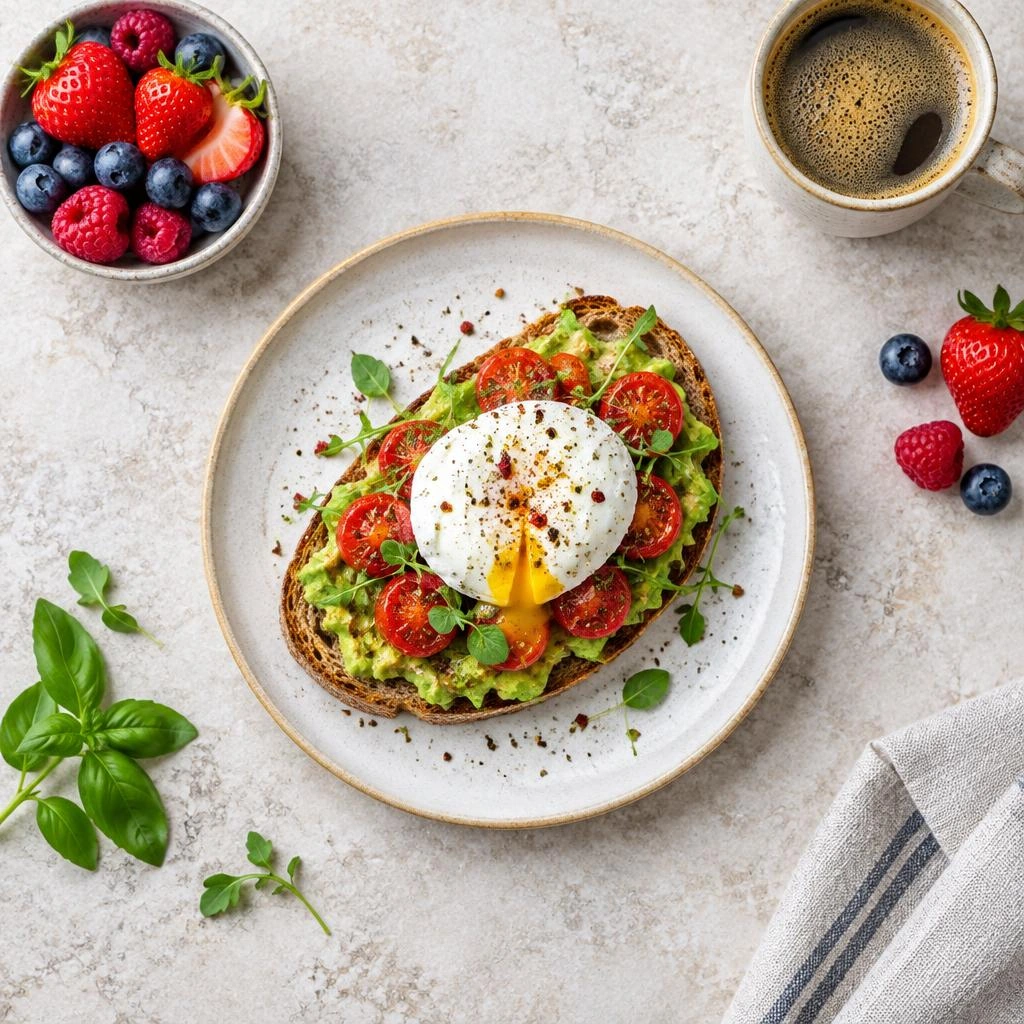
A square crop turns a wide or tall photograph into an even-sided image without distorting the subject. It is useful for consistent galleries, product collections, compact illustrations, and layouts built around equal-width tiles. The key decision is what to leave outside the frame, not how to squeeze everything inside it. This editor processes images locally on your device, so selecting a file does not upload the original to a server.
Use equal sides to create consistency
A square has a 1:1 aspect ratio: its width and height are equal regardless of pixel count. A 600 by 600 image and a 1400 by 1400 image have the same proportions, but different amounts of image data. Choose dimensions for your own placement rather than assuming one square size suits every use.
Repeated square crops can make a collection feel orderly even when the originals have different orientations. Keep the apparent scale of related subjects consistent. For example, similarly sized products should occupy comparable portions of their frames instead of alternating between tight close-ups and distant views.
Create a square crop step by step
The selection is a fixed-ratio rectangle. With a square preset selected, dragging moves the frame and resizing keeps both sides equal. This changes the framing without stretching the image.
- Open your source image from your device.
- Select the square preset so the selection uses a 1:1 ratio.
- Drag the frame over the area you want to keep, then resize it to exclude unnecessary surroundings.
- Choose natural crop resolution, or switch to exact output and enter matching width and height values.
- Select PNG or JPG, export the image, and check the saved crop at its intended display size.
Separate cropping from output sizing
Cropping chooses which source pixels remain. Output sizing determines the dimensions of the resulting file. If your selected source region is 1200 by 1200 pixels, natural crop resolution keeps those dimensions. Requesting 600 by 600 in exact output reduces the same composition; it does not select a different part of the photograph.
Requesting a larger export increases the pixel dimensions but cannot restore texture that was absent in the selected region. For sharper results, avoid taking a tiny square from a distant subject. Start from a detailed original and keep enough source pixels for the size you actually need.
Balance subjects within the frame
Try placing the main subject slightly away from the center when the surrounding scene contributes meaning. A person looking to the right often benefits from more space on that side. For symmetrical objects or architectural details, centering can emphasize structure and make the square feel intentional.
Check all four edges before exporting. A narrow leftover strip of a doorway or a clipped fingertip can attract more attention than expected. If you are preparing several images together, compare headroom, horizon height, and subject scale across the set rather than judging each crop in isolation.
Choose a file format and recognize limits
PNG can preserve transparency that already exists in a source image. A normal square crop does not automatically remove a solid background. JPG cannot store transparent pixels, so choose PNG whenever existing transparent areas must survive. For fully opaque photographs, JPG is another available export choice.
A crop cannot widen the original scene or reconstruct content beyond its edges. A tall full-length portrait may not fit into a useful square without sacrificing either the feet or surrounding space. Move and enlarge the frame within the source, or choose a different photograph if the necessary content cannot fit.
Frequently asked questions
Does a square crop stretch a portrait?
No. Cropping removes content outside the selection. A 1:1 frame changes the composition while preserving the subject’s proportions.
Can I enter different output width and height values?
Custom dimensions set the selection ratio. To keep a square result, use equal width and height values.
Which export should I use for an opaque photo?
Either PNG or JPG is available for a square crop. Choose according to your file requirements; transparency requires PNG.
Why is my tightly cropped export blurry?
The selected region may contain too few source pixels for the requested output. Use a larger source region or a more detailed original.
Does opening my image send it anywhere?
No. Image processing takes place locally on your device, without uploading the picture to a server.