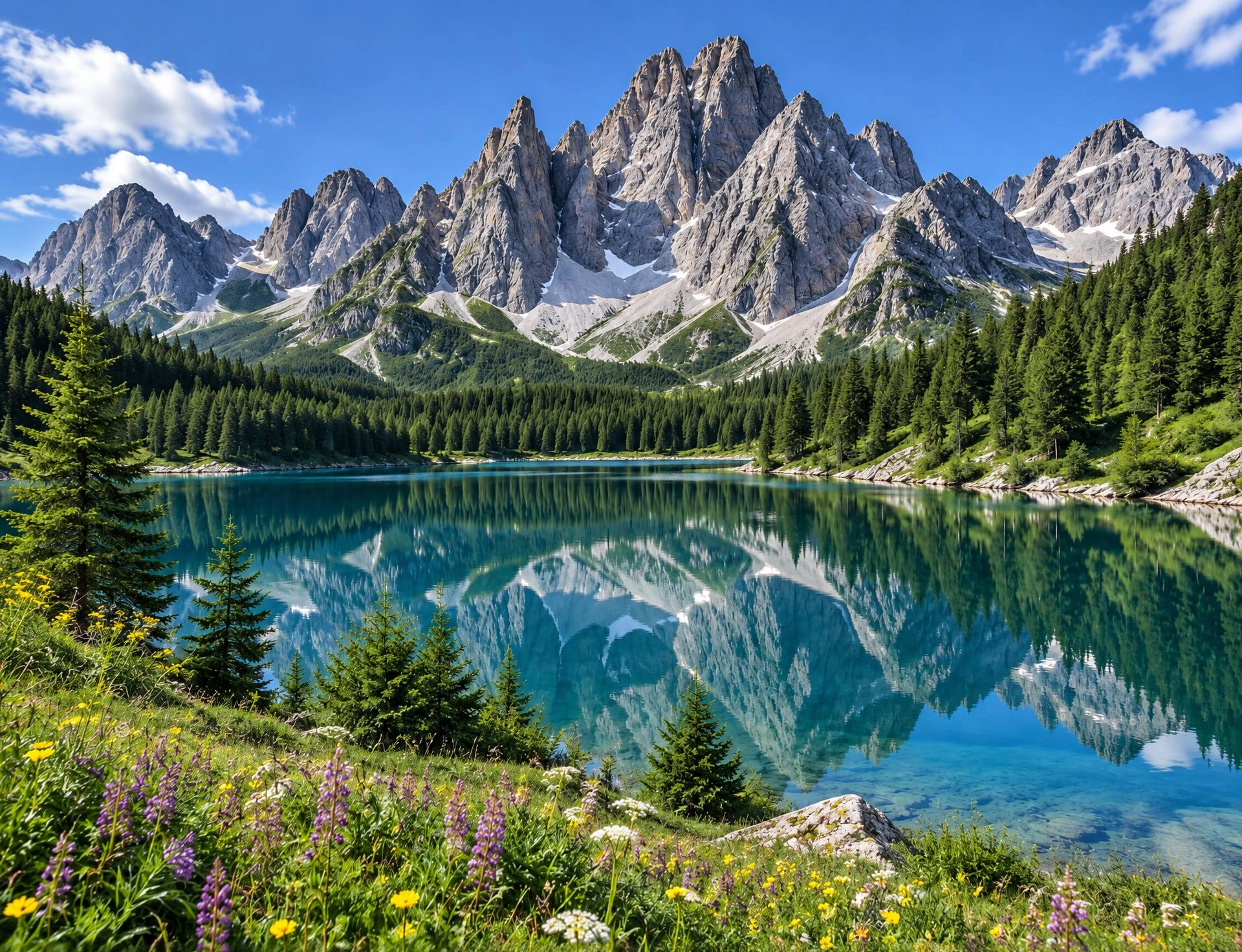
1:1 photo framing
A 1:1 image crop fixes the relationship between width and height without stretching the photograph. The first number describes width; the second describes height. This page opens with that ratio already selected, so you can focus on the composition rather than adjusting an outline by eye. It is useful for square photo tiles, balanced product collections, and compact image grids. The ratio describes a frame, not a mandatory file size or a guarantee that a particular website will accept the image.
Compose a photo for 1:1
A square gives the same room horizontally and vertically. Center a single object, or place the main detail slightly off center and balance it with quieter background on the other side. Watch all four edges equally when framing a face or product.
Start with a source that contains enough surrounding scene to accommodate the 1:1 frame. Moving the picture reveals different parts of the existing photo, but cannot create areas outside the original. Keep faces, lettering, and object edges away from the crop boundary. If two important details will not fit together, a wider original or a different composition is better than excessive zoom.
How to crop to 1:1
The preset stays selected when you replace the demo with a photo. Use a JPEG, PNG, or WebP that your browser can display. The photo is processed locally and the original file is not overwritten. Scroll below the workspace for advice without losing the crop you are editing.
- Click the photo drop area and choose a file, or drag an image file into that area.
- Drag the picture inside the preview until the important detail fits the 1:1 frame.
- Adjust Zoom using the minus and plus buttons. Wider screens also show a slider for small framing changes.
- Check the preview against checkerboard, white, or dark. These choices change the viewing background, not the saved picture.
- Click Crop & Download. Open the PNG and inspect its dimensions and framing before placing it in your project.
1:1 ratio versus pixel dimensions
For example, 1000 × 1000 pixels has this ratio. That pair is an illustration of the arithmetic, not an official platform specification. Multiplying both numbers by the same amount keeps the frame unchanged. Pixel dimensions describe how much image detail the file contains, while aspect ratio describes its proportions. Two photos can share a ratio and still have very different sizes.
The ratio export trims the surrounding canvas to the selected rectangular frame. Its pixel dimensions follow the available image area, with whole-pixel rounding. If you need an exact width and height, open Custom Width × Height Image Cropper, enter matching dimensions, and keep exact-size export enabled. Enlarging a small source may meet a size requirement but will not add real detail.
When to choose this frame
Use 1:1 for square photo tiles, balanced product collections, and compact image grids. Aim for one clear focal point and supporting space that feels intentional. A busy scene may become harder to understand after trimming, so check whether removed background also removed useful context. Small text in a screenshot should remain readable at the intended display size.
For comparison, 4:5 adds vertical room while retaining a compact width. Try the neighboring frame on the same source rather than deciding from the numbers alone. Rotating the frame relationship is not the same as rotating the picture. The 1:1 preset keeps your photograph upright and changes only the visible rectangular region.
Common problems
A cut-off subject usually needs repositioning or less zoom, not a larger downloaded file. Revisit this advice: A square gives the same room horizontally and vertically. Center a single object, or place the main detail slightly off center and balance it with quieter background on the other side. Watch all four edges equally when framing a face or product. If the preview includes transparent gaps inside the rectangle, move the photo back over the frame or increase zoom slightly. Avoid leaving an exposed edge unless transparency is intentional.
A one-pixel difference can result from rounding an image area to whole pixels. Use exact dimensions when strict file sizing matters. If a destination crops the image again, inspect its own preview before posting. Different display containers can hide parts of a correctly proportioned file.
Frequently asked questions
What does 1:1 mean?
It is the width-to-height relationship. 1000 × 1000 pixels is one example with these proportions; it is not a required export size.
Does a 1:1 crop stretch my photo?
No. Cropping removes parts of the scene while keeping the photo proportions. Zoom magnifies the source without squeezing it into a new shape.
Where should I position the subject?
A square gives the same room horizontally and vertically. Center a single object, or place the main detail slightly off center and balance it with quieter background on the other side. Watch all four edges equally when framing a face or product.
Can I choose an exact pixel size?
Use the custom width and height page for a specific output size. Enter dimensions with the desired ratio and keep exact-size export enabled.
Is my photo uploaded for cropping?
No. Photo reading, crop adjustments, and PNG export happen in your browser. You do not need an account or a server upload.